Set up a trainer or staff login
Give the person the right role and only the access their job requires.
Before you begin
Confirm the person's exact staff login email and job. Search for an existing account before creating another.
What to do
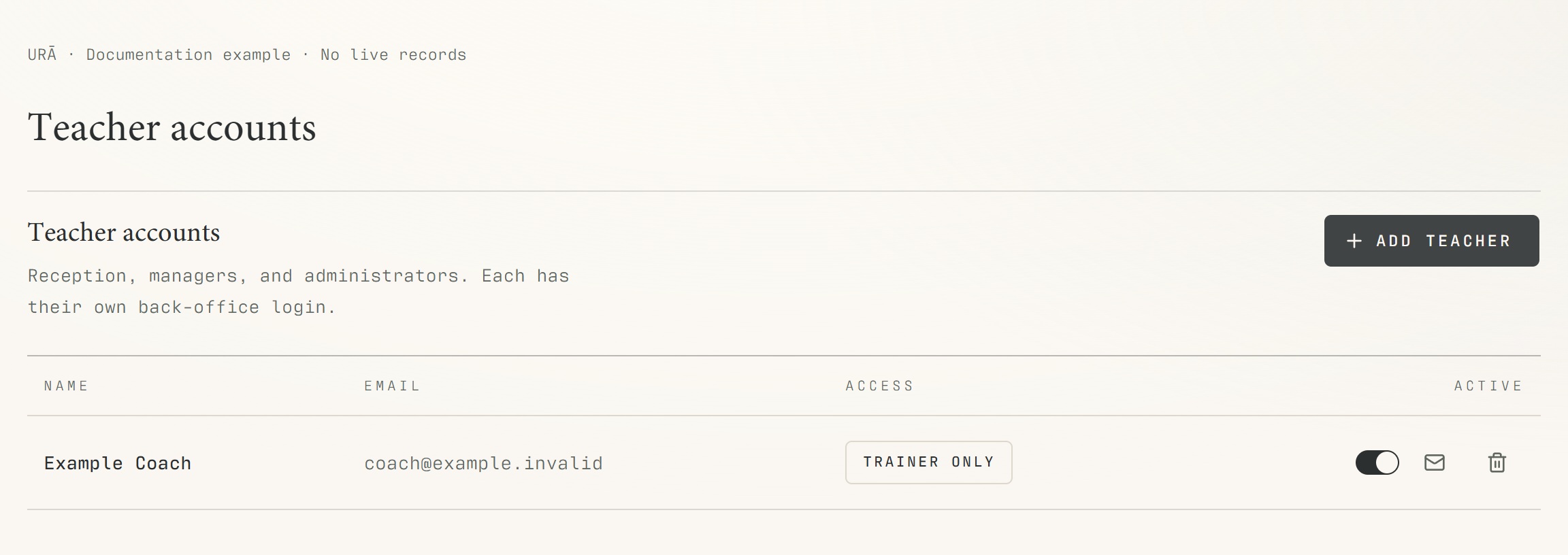
Open the authorized teacher/staff management area. Head coaches can manage teachers; broader staff roles require management permissions.
Search for an existing login and verify the exact email before creating another account.
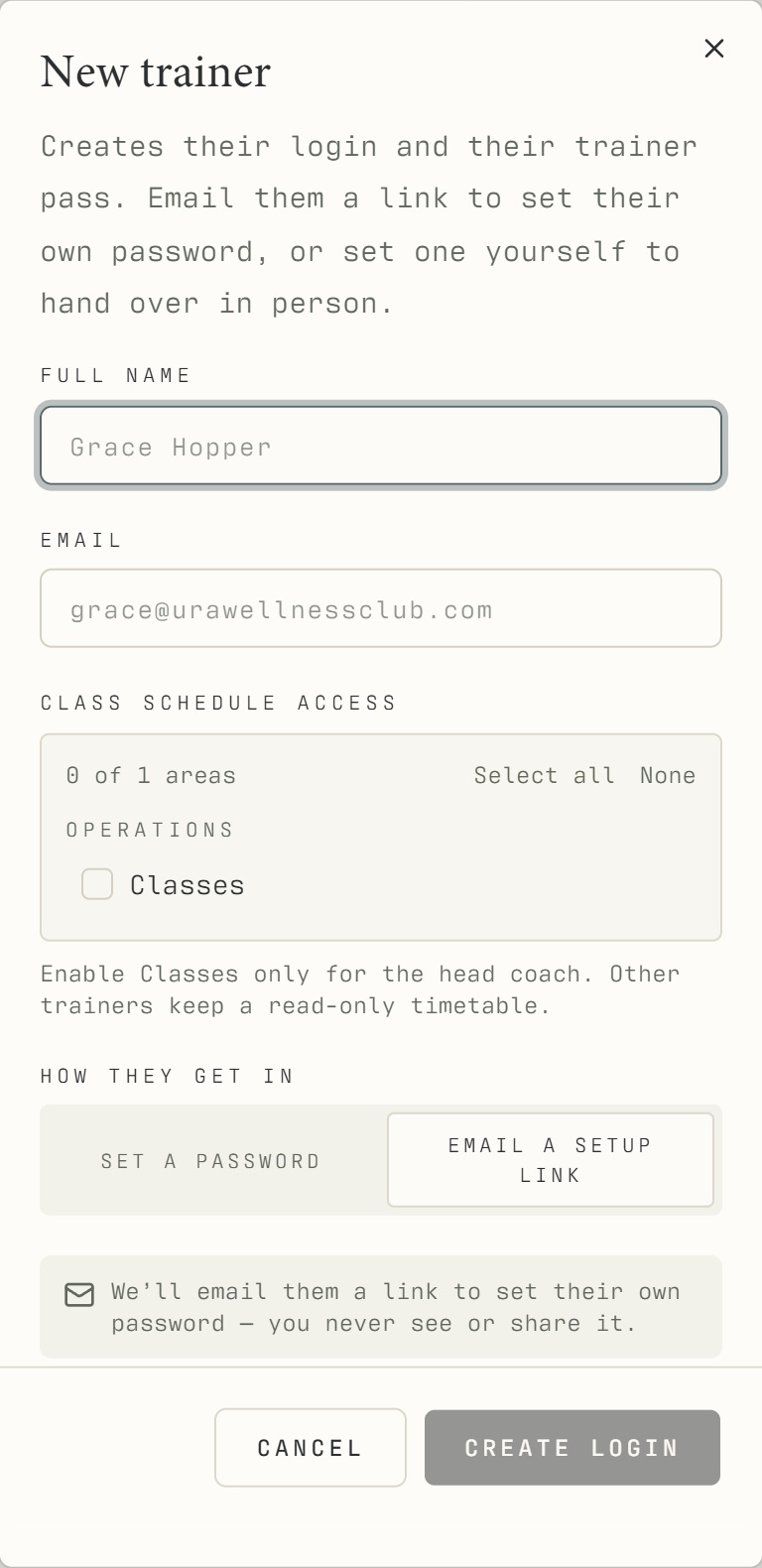
Create or activate the trainer's staff login, set their role and send the account setup invitation.
Assign the trainer to their classes using Classes.
Ask them to sign in through Staff access and verify their own schedule and attendance. Grant broader class management only when explicitly intended.
What should happen
The staff member can enter the appropriate work area. A regular trainer's view is limited to their assigned work unless broader permissions were deliberately granted.
Example
For a new trainer, set up the staff account, assign their classes, then have them open their own dated roster and check attendance access.
Screen guide
Troubleshooting
The trainer gets Account not found in member sign-in.
Check the invited staff email, account activation and setup, then use Staff access. Assigning a name to a class does not by itself prove a working staff login exists. Do not change a real login to an unverified email alias.
Understand the difference
- Account / access pass
- An account lets a person sign in. Club entry also depends on membership or visit validity, payment, approval and restrictions. Guests use their private browser pass rather than needing a member login.
- Member / trainer / reception
- A member login is for personal bookings and access. Trainers use invited staff accounts for assigned work. Reception and administrators receive broader tools according to their actual permissions.
Before you finish
A member profile alone does not grant staff access. Regular trainers use a scoped trainer portal; reception and class managers have broader views according to permissions.