Add a class to the schedule
Set the class details, instructor and capacity before publishing it.
Before you begin
Decide the weekday, time, instructor, capacity and recurrence before adding a class. Check the schedule for an existing entry at that time.
What to do
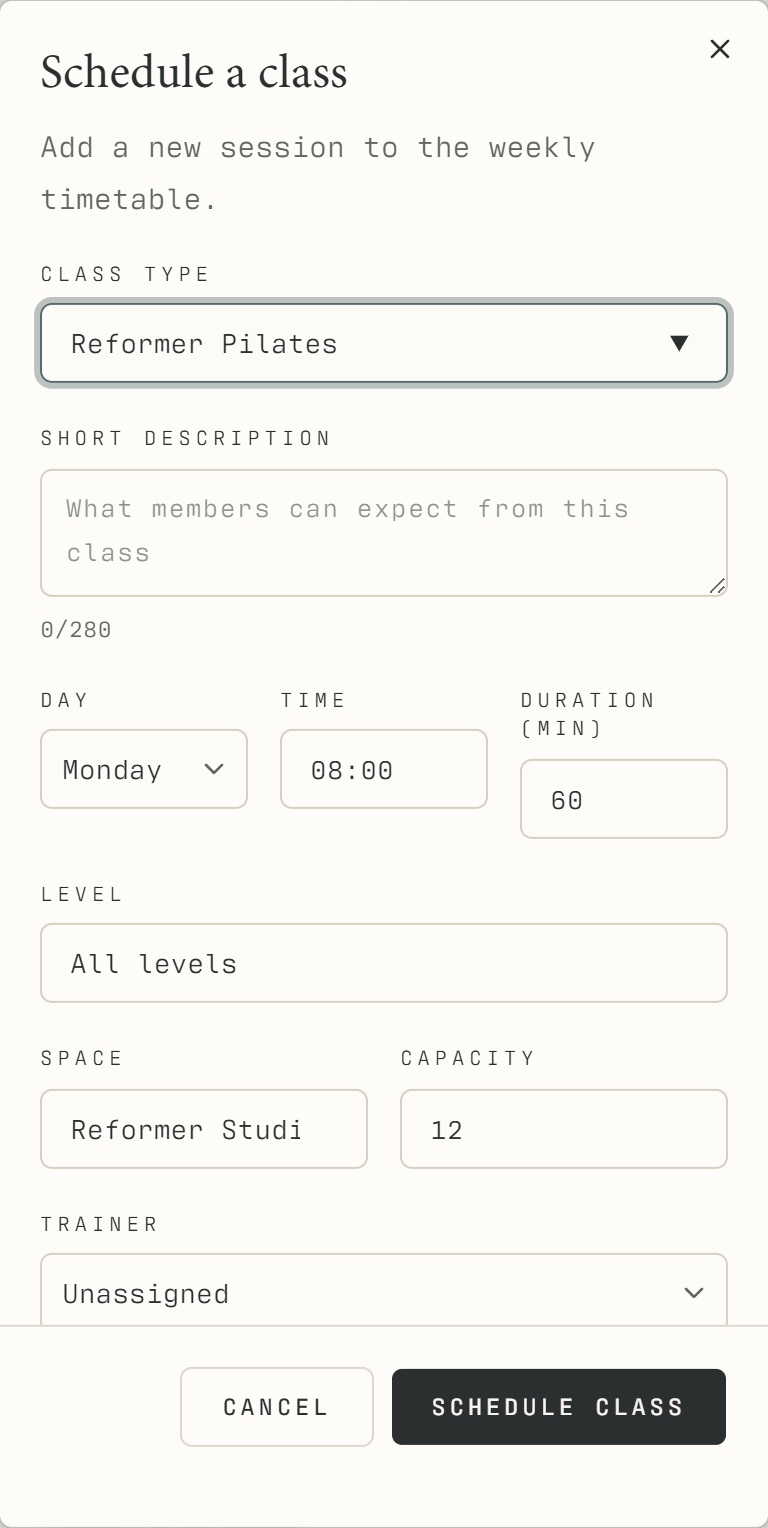
Open Classes and select New class.
Choose the class type and enter a short description, weekday, time, duration, level, room and capacity.
Select the instructor, then review every field before choosing Schedule class.
Check the resulting dated session in the timetable and calendar. Review repeat settings if the class needs a specific start, end or frequency.
What should happen
The scheduled sessions appear on their actual dates. Compare both the reception view and the member view for the same occurrence.
Example
To add a new weekly Pilates class, set the series deliberately. To move one Monday session, edit that Monday instead.
Screen guide
Troubleshooting
I only need a substitute teacher next week.
Open the existing dated session and choose Edit → This date only. Creating another weekly class can produce duplicates and changing the entire series can affect later weeks.
Understand the difference
- One date / recurring series
- A dated class is one occurrence. A recurring series supplies repeated sessions. Choose the scope in the change dialog and check the date before confirming; review later weeks separately.
- Booked / attended / cancelled
- Booked reserves a place. Attended records presence. No-show records absence. Cancelled ends the reservation or session. These states should not be counted interchangeably.
- Member / trainer / reception
- A member login is for personal bookings and access. Trainers use invited staff accounts for assigned work. Reception and administrators receive broader tools according to their actual permissions.
Before you finish
A weekly timetable entry can produce sessions in multiple weeks. For a change to an existing single date, use Edit class → This date only instead of adding a duplicate class.