Use the same class date in every view
Keep the register, weekly timetable and calendar aligned.
Before you begin
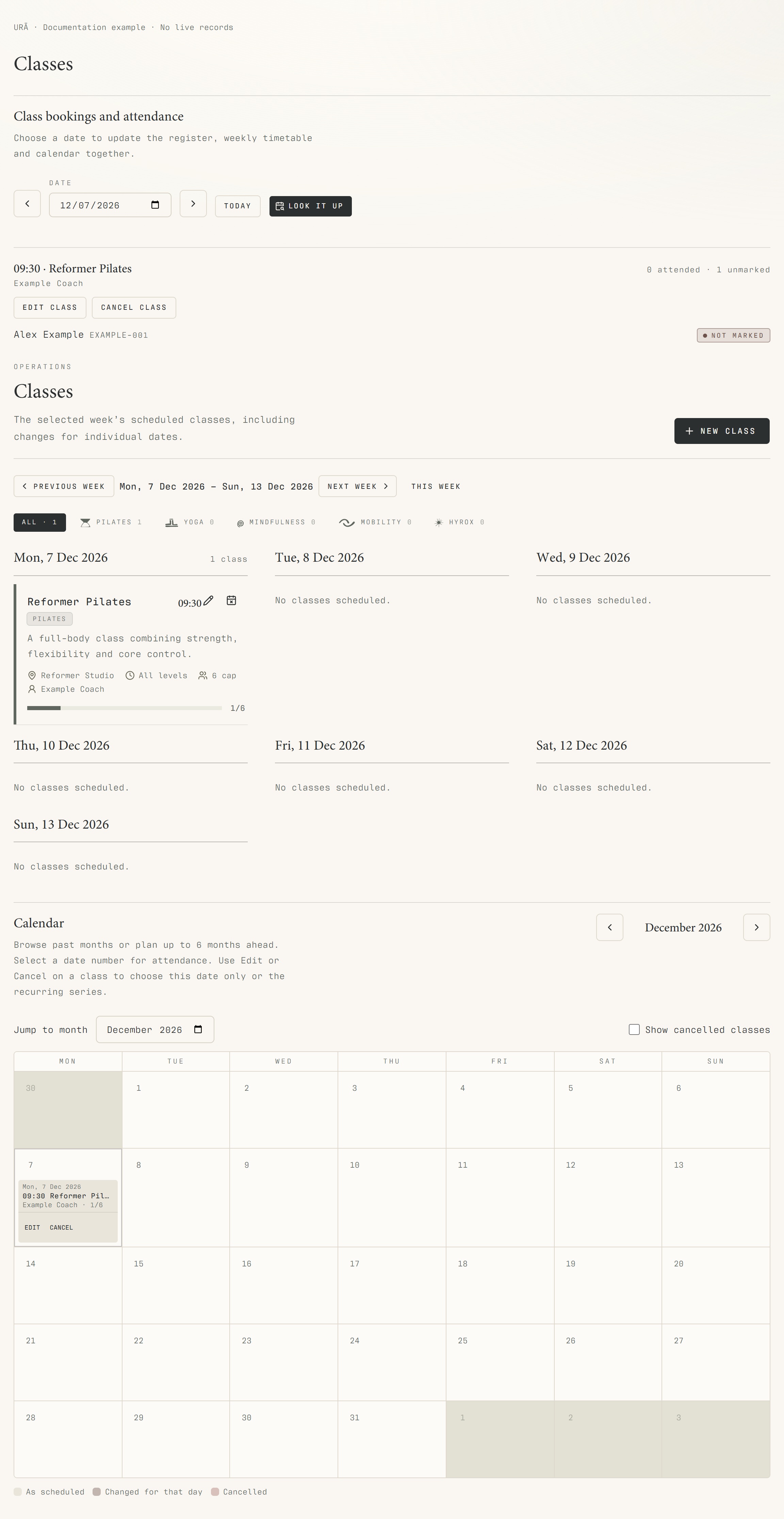
Use the date control at the top of Classes. The attendance register, timetable week and calendar need the same selected day for a useful comparison.
What to do
Open Classes and select the date at the top of Class bookings and attendance.
Wait for the register to load for that date.
Check the dated week heading below. Previous week and Next week move the shared selection.
Use the calendar date numbers to open the day's register.
Read the actual date on a session before making a change.
What should happen
The register and dated schedule refer to the selected period. Open a session to verify its actual date before editing or cancelling.
Example
At the end of Monday, select Monday to review attendance. To change tomorrow's class, select Tuesday before opening its edit action.
Screen guide
Troubleshooting
I cannot find Edit or Cancel.
Select the intended future date and look beside the class in the register or on its dated card. If controls remain missing after refreshing, verify Staff access and ask management to check class-management permission. Do not add a duplicate class as a workaround.
Understand the difference
- One date / recurring series
- A dated class is one occurrence. A recurring series supplies repeated sessions. Choose the scope in the change dialog and check the date before confirming; review later weeks separately.
- Booked / attended / cancelled
- Booked reserves a place. Attended records presence. No-show records absence. Cancelled ends the reservation or session. These states should not be counted interchangeably.
- Member / trainer / reception
- A member login is for personal bookings and access. Trainers use invited staff accounts for assigned work. Reception and administrators receive broader tools according to their actual permissions.
Before you finish
A past attendance date and a different timetable week used to be confusing. The shared selection now keeps these views aligned; refresh an older open tab after an update.