Browse the web class schedule
Book the actual dated session rather than assuming the class repeats unchanged.
Before you begin
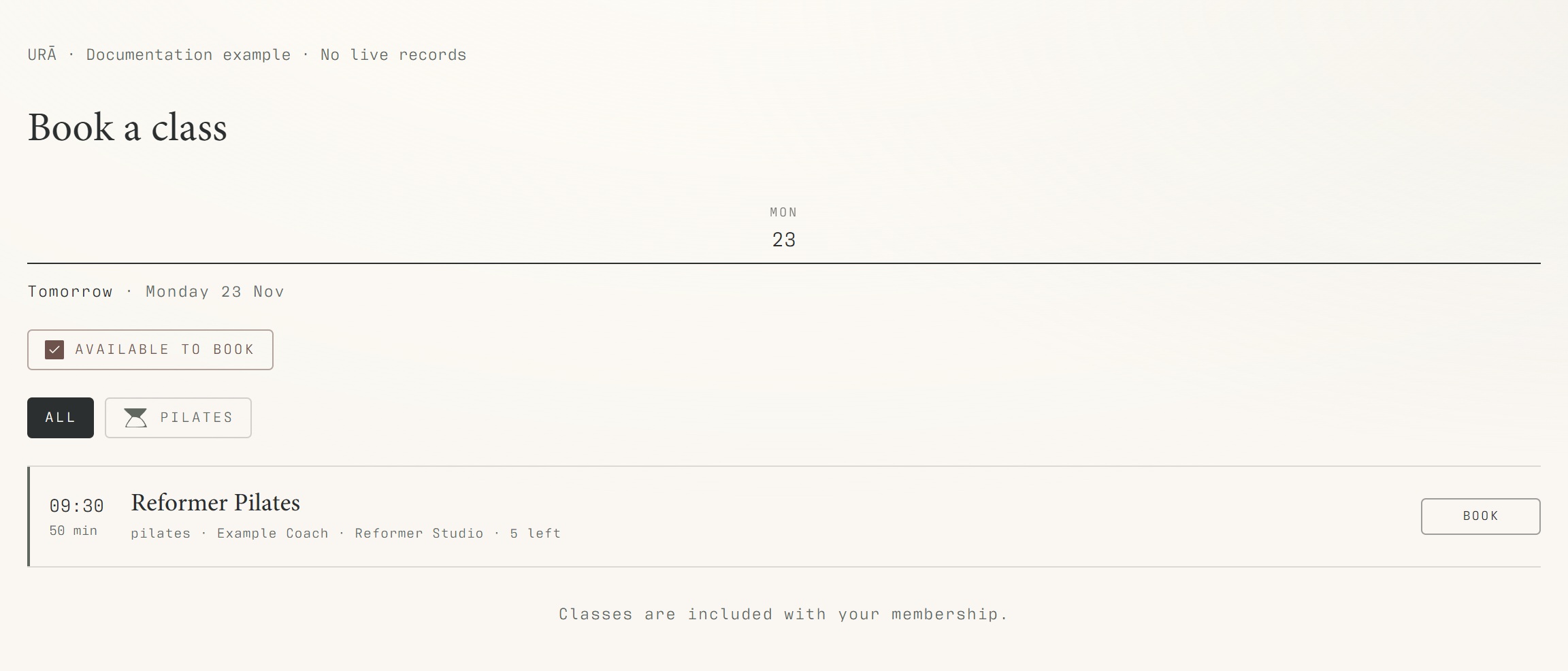
Select the actual visit day, then check the instructor, time and room. Weekly recurring classes can have individual-date changes.
What to do
Sign in and open Classes or Book → Classes.
Select the visit date and, if helpful, a discipline filter.
Read the time, instructor, room, description and available places.
Choose the booking action, review any charge and confirm.
Open Bookings to verify the date of the reservation.
What should happen
Your confirmed reservation appears in Bookings with the chosen occurrence date. Any stated charge remains visible for review.
Example
Check Monday 7 December in both views, rather than comparing the member's selected Monday with reception's current week.
Screen guide
Troubleshooting
Reception and I seem to see different classes.
Compare the same calendar date and clear discipline filters. Refresh an older tab, then give reception the class name and time if the difference remains. Comparing different weeks can look like a schedule mismatch.
Understand the difference
- One date / recurring series
- A dated class is one occurrence. A recurring series supplies repeated sessions. Choose the scope in the change dialog and check the date before confirming; review later weeks separately.
- Booked / attended / cancelled
- Booked reserves a place. Attended records presence. No-show records absence. Cancelled ends the reservation or session. These states should not be counted interchangeably.
- Member / trainer / reception
- A member login is for personal bookings and access. Trainers use invited staff accounts for assigned work. Reception and administrators receive broader tools according to their actual permissions.
Before you finish
Single-date cancellations and instructor changes can make one week different from the next.